Frame
Add Node → Compose → Frame
A Frame is an area you draw behind your cards, to group a section of your canvas and give it a title — a shot, a scene, a round of exploration. It’s purely visual: it has no rings, doesn’t take part in the flow, and doesn’t change how your cards generate. It’s just there to keep things readable.
What’s on the frame
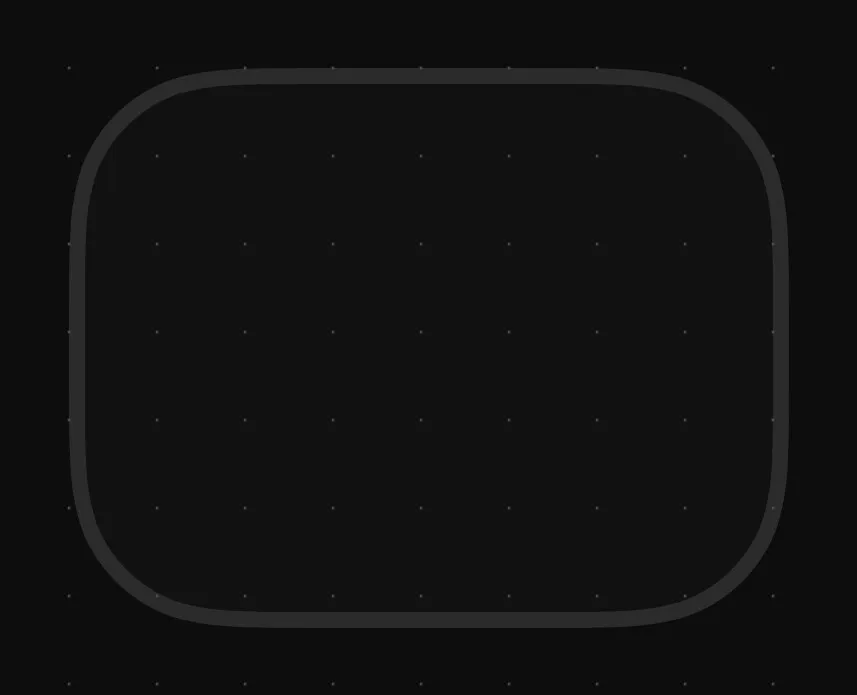
| Area | What it does |
|---|---|
| Title | Above the frame. Double-click there to write it or change it. An untitled frame shows a greyed Label only when you hover or select it. |
| Border band | Drag the frame by it, and every card inside comes with it. Click it to select the frame. |
| Corners | Drag any corner to resize. |
| Colour dot | Hover the frame and a dot appears at its top left: choose from five colours. |
| Rings | None. A Frame carries nothing and connects to nothing — you can click and drag right through its middle. |
Adding one
The easiest way is to select some cards and put a Frame behind them: Create Frame in the right-click menu, or Arrange › Create Frame Around Selection (⌥⌘G). It’s sized to fit what you selected. You can also add an empty one from the dock, or from Add Node → Compose → Frame.
A Frame and a Workflow answer the same impulse — this lot belongs together — in opposite ways. A Frame draws an area around the cards and leaves them where they are; a Workflow folds them away behind a single card. Reach for a Frame when you still want to see the graph.
Using it
Double-click above the frame to give it a title. Hover it and click the dot at its top left to change its colour. Drag the border band to move it — and moving a frame brings every card inside it along. Drag a corner to resize it.
You can click and drag right through the middle of a frame without selecting it, so it never gets in the way while you’re working on the cards inside — and selecting with a drag, or Select All, leaves frames out.