How do I connect Runware?
Node Composer sends its generation requests to one of two providers, Runware or WaveSpeed. This page covers Runware; if you’d rather use the other, see How do I connect WaveSpeed?. The whole setup takes about a minute.
1. Create an account
Sign up at Runware. You’ll need an account before there’s a key to make.
2. Create the API key
Open the API Keys page in your dashboard, give the key a name that tells you where it’s being used — node-composer does the job — and click Create API Key. Runware offers you an optional description on the way; Skip is fine.
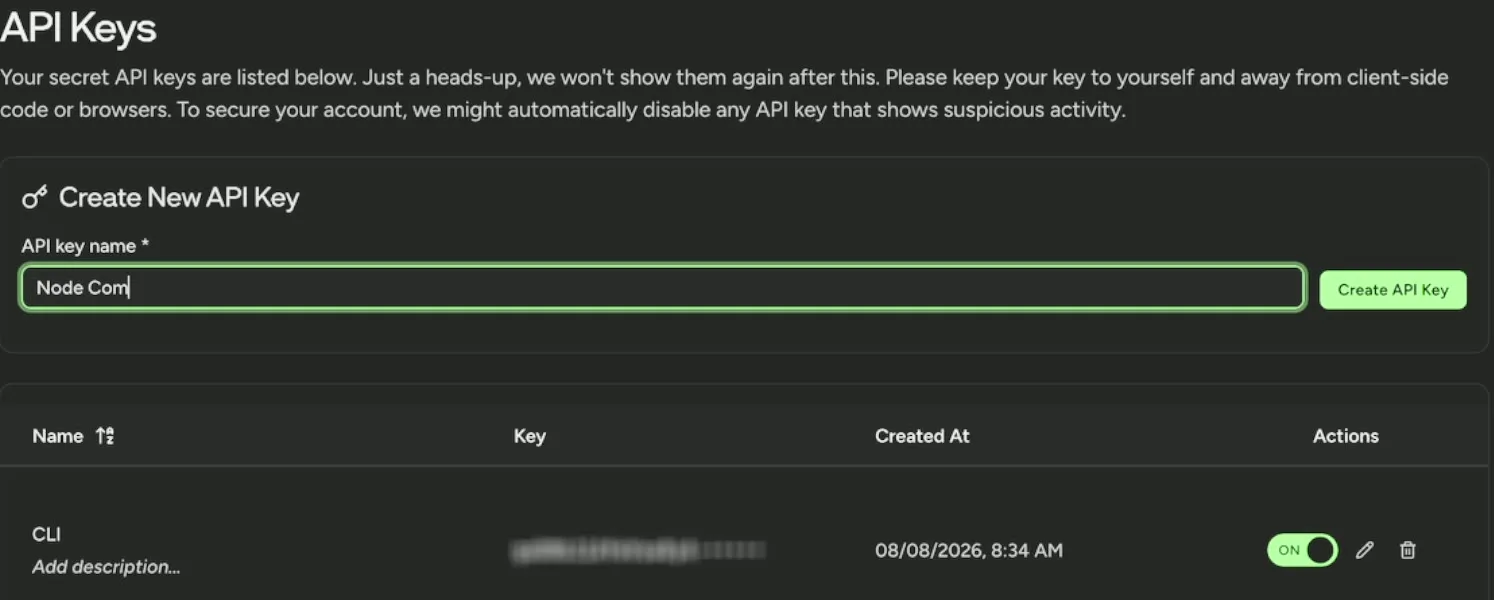
The key is then shown once and once only. Copy it while it’s on screen — close that message and there’s no way back to it, and you’d have to make another. Treat it like a password.
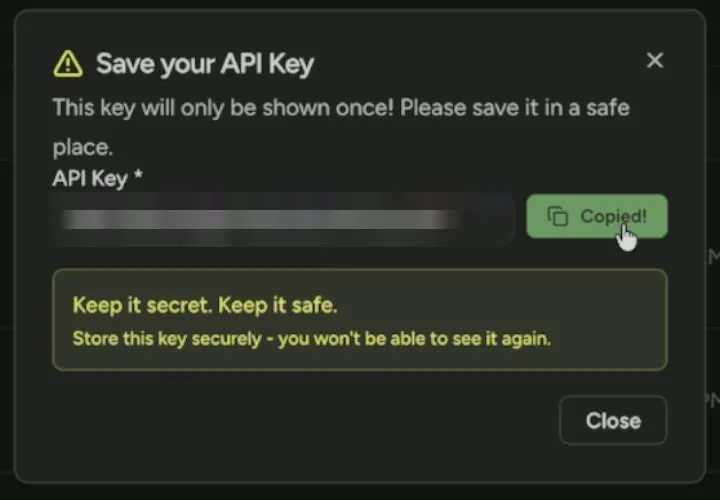
You can keep several keys side by side, one per project or machine, and revoke any of them later without touching the others. Worth doing if a key ever ends up somewhere it shouldn’t.
3. Paste it into Node Composer
In Node Composer, open Settings — Node Composer › Settings…, or ⌘, — and go to Providers. Paste the key into the Runware API key field and click Save. If you haven’t made the key yet, Get an API Key… right there takes you to the page for it.
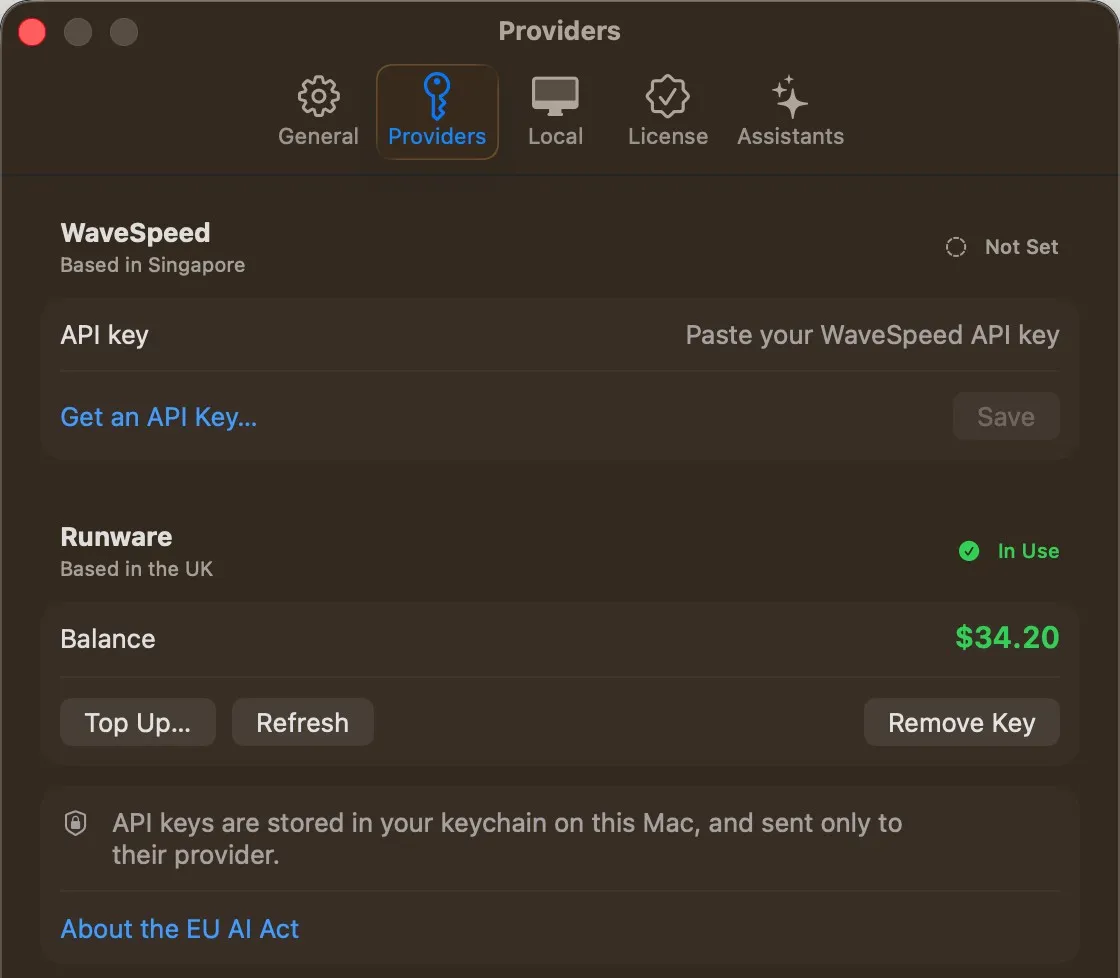
Once saved, the field gives way to your Runware balance, and the badge next to the name says In Use. Top Up… opens your Runware account to add credits, Refresh reads the balance again, and Remove Key takes the key out.
If you’ve got a WaveSpeed key in as well, a Generate with picker turns up underneath, and that’s what decides which of the two your generations go to: the cards offer the models of the provider chosen there, with its settings and prices. A card keeps its model when you switch. With only one key in there’s nothing to choose, so it stays out of the way.
API keys are stored in your keychain on this Mac, and sent only to their provider.